Convert | 9 Minutes Reading
How to Convert Multiple Emails to PDF in Bulk?


Hi my name is Daniel and I am a paralegal in Denver, Colorado. Last night I got a call from my attorney. He asked me to send over 1,400 client emails as PDFs and I had no idea how to convert multiple emails to PDF in bulk. I have tried printing them one by one in Outlook and it took me almost three hours to finish just about 60 emails. I also observed that half of the PDFs have no attachments in them and the file names are all ‘Re: Contract’. I do not have days to do this task. Is there any faster way please suggest to me?
If you feel that Daniel’s situation matches your own then you are in exactly the right place. There are many people who want to know how to convert multiple emails to PDF in bulk for legal files, tax records, HR cases or simple backups and if you think using Outlook makes it all easy for you then wait it is not as you are thinking. In this simple guide we will explain to you some manual free methods that can work. Also you will know where it will not work and what you can do to successfully save multiple emails as PDF with attachments using a dedicated tool.
Summary: Outlook has no one click button to convert multiple emails to PDF. You can select a few emails and then use Print > Microsoft Print to PDF option but this works only if you have few emails and it does not include any attachments and also gives you little control over file names. If you want to convert emails to PDF in bulk with attachments simple solution is to use a dedicated tool that allow you to add PST, OST, MSG, EML, MBOX and other email files with preview option and allow to exports selected emails or whole folders to PDF in one batch.
Interesting Key Facts to Know!
- Manual Way: You need to select emails in classic Outlook → File > Print → Microsoft Print to PDF. This is good if you have 5 to 20 emails only.
- Attachments:This “Print to PDF” option only captures the body of the message and here attachments must be saved separately.
- New Outlook and Outlook on the web: These options do not allow you to print multiple selected emails at once so you will need to repeat the process for each email individually.
- Bulk way: If you have larger files then the best approach for you is to use a dedicated converter that can read your email files directly and export them to PDF in batches.
- Best practice: You must always keep backup of your original PST/OST/MSG files before converting multiple emails to PDF in bulk.
Why Save Multiple Emails as PDF?
As we know emails are not always safe in the inbox they could be deleted, your mailbox might be closed or perhaps your old computer could be replaced. So a PDF is easy to open on any device that’s why many people choose it for long term copies. Below you can find some of the most common reasons:
- Legal and Litigation Work: There are many law firms who generally share email records as PDFs with their clients, courts or other parties.
- HR and Office Cases: HR teams easily collect emails that are related to a complaint or employee exit and keep them in a fixed format.
- Tax, Accounting and Finance: Important documents like Invoices, receipts and approvals that are sent by email can be stored as PDFs for audits.
- Data requests in Europe and the UK: Companies who respond to a request for access to personal data within GDPR may need to find and export specific emails.
- Insurance and claims: PDF is a popular format if there is a need to bundle documents like photos, emails and other needed items for claim.
Every one of these jobs has the same hidden need – they all need to save multiple emails as PDF without losing time, content or attachments.
Suggestion: You can also learn more to know how to convert MBOX files to PDF easily using step by step guide.
Why Choose PDF for Email Records?
- Opens everywhere: It is very easy to open on Windows, Mac, your phone or browser without Outlook.
- Layout stays fixed: What you see today is what others see tomorrow.
- Easy to share and print: It is easy for lawyers, auditors and clients to print and share as they all know how to use PDF.
- Searchable: Text PDFs are easy to find. You just need to press Ctrl + F and type what you want to search inside.
Good to know: A PDF is only a readable copy and it is not the same as your original email file which keeps all technical details like headers. For important matters you must also keep the original file safe as well.
How to Convert Multiple Emails to PDF at Once Using Outlook
This is a free manual method that works in classic Outlook for Windows. It is absolutely fine when you only have a few emails. Check below the steps for you to follow:
- Open classic Outlook and go to folder with your emails.
- Now hold the Ctrl button and click each email you want or simply hold Shift to pick a range.
- Thereafter Click File > Print.
- Choose Microsoft Print to PDF as the printer. Here under print options you need to pick Memo Style which will print the full message layout.
- Now just click Print and then choose a folder and file name when Windows asks to you.
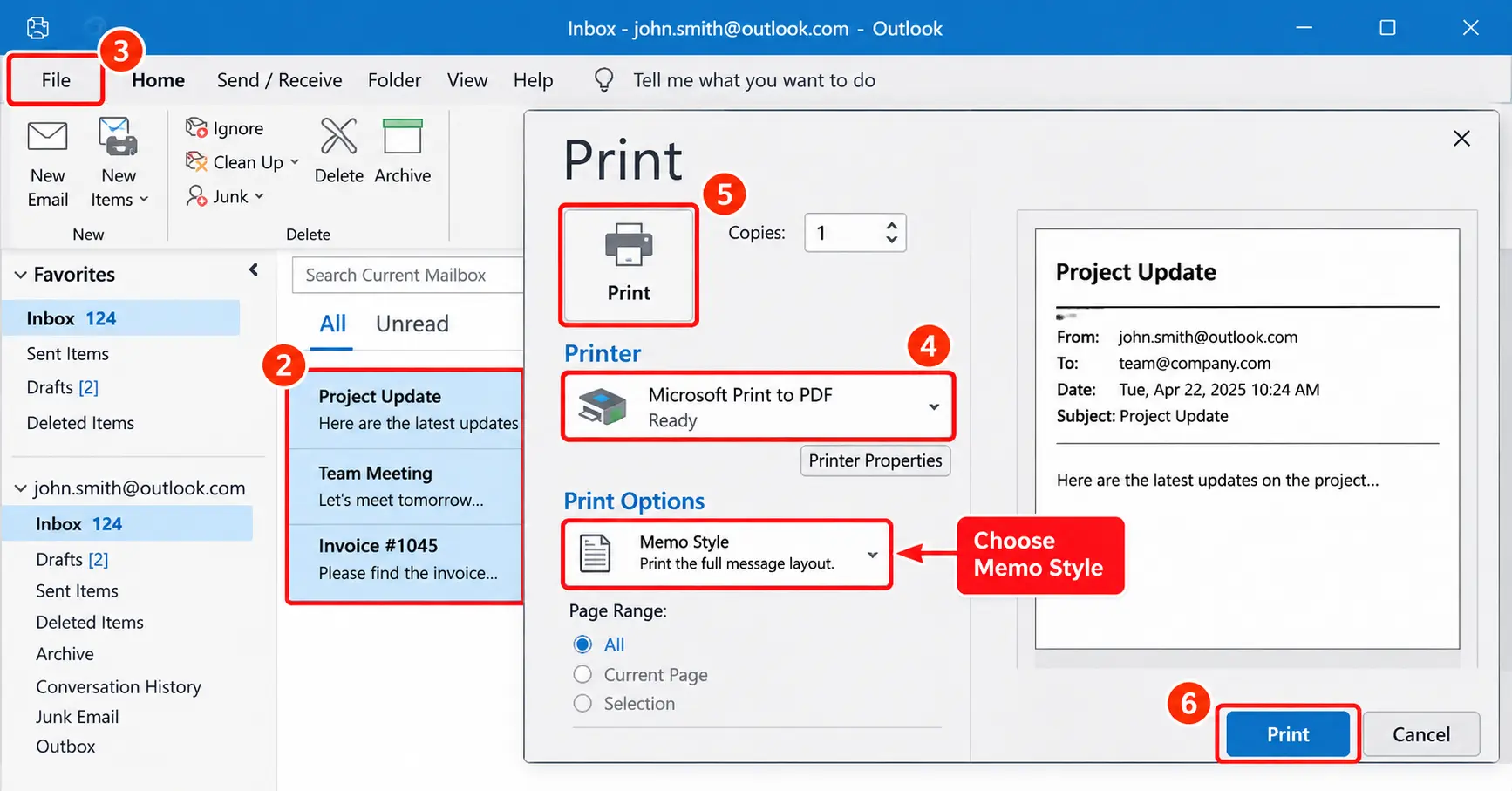
What you get: It is fully dependent on your Outlook version and settings here the selected emails may be saved in one combined PDF or Windows may ask you to name each file one by one.
Manual Method for Outlook on the Web and New Outlook
In the new version of Outlook and in Outlook for the web you need to open email then click on the three dot menu here select “Print” and then choose “Save as PDF” or “Microsoft Print to PDF.” These versions do not allow you to print multiple selected emails into a single file so the process must be performed separately for each email.
How to Add Attachments Manually
If you are thinking how can I convert multiple emails to PDF in bulk with attachments here you should know that the Print to PDF saves only the body of your email. If you want attachments you must:
- Open each email and right click on attachment.
- Choose Save As (or Save All Attachments) and store them in a folder.
- Now convert Word, Excel or image files to PDF yourself if you need them in the same format.
- The last step is to merge the pieces with a PDF tool if you want one file per email.
Reading Suggestion: You can read this article also How to Batch Convert MSG Files to PDF to know step by step guide.
Drawbacks of the Manual Method
Knowing How to Convert Multiple Emails to PDF in Bulk manually is good but you must also know its limitations as manual methods are suitable for only those who have few emails to convert and it is not good for those who have hundreds or more than 100 emails to convert. Check below table for more detailed information where it falls short:
| Problem | What it means for you |
|---|---|
| Very slow | Having large file with hundreds of email |
| Attachments not included | You must save and convert each one separately |
| Poor file names | Same name for many files also rename them by hand |
| No filters | You can not use filter to or pick specific emails |
| Needs Outlook | Email clients like Outlook is needed. |
| Version differences | Classic, new Outlook and web all behave differently |
| No export report | Nothing proves what was converted and what was skipped |
If you have more than a few dozen emails then this is the time when you must move to a dedicated tool.
Convert Multiple Emails to PDF in Bulk Using Dedicated Converter
If you want to Convert Multiple Emails to PDF in Bulk then there is a solution known as ForensicsWare Email Converter Tool that allows you to convert emails to PDF format without Outlook or email client. You can convert, search and print emails within a few clicks. Download and install this Windows utility and follow the steps as mentioned below.
- Step1: You need to first create a case and then add your emails files.

- Step2: Now you can preview all your emails using multiple preview modes.

- Step3: Search and filter your data if you are printing any specific emails using advanced search features.

- Step4: Now choose PDF as your export format and click to export.
- Step5: Once it is converted to PDF you only need to choose a location to save it.
Frequently Asked Questions
Q1. How to convert multiple emails to PDF in bulk?
If you have few emails then you can proceed with manual methods using classic Outlook there use File > Print > Microsoft Print to PDF. But if you have large numbers of email files then use a dedicated tool as suggested to quickly export everything to PDF in one batch.
Q2. Can I convert emails to PDF in bulk with attachments?
Yes. Software allows you to convert and print emails to PDF in bulk.
Q3. Can I convert multiple Gmail emails to PDF?
Yes. Gmail allows users to print any individual messages and complete conversations. You first need to export data in MBOX format and then use a converter to PDF. This is how you can convert multiple emails to PDF in bulk.
Conclusion
Now you know how to convert multiple emails to PDF in bulk by reading tips and methods above from the free Outlook print method to a faster tool built for large jobs. Manual methods are also good but in some cases like if you have few emails only to print but if you have a larger email file or If you need to convert emails to PDF in bulk with attachments then you should move to a dedicated converter that gives you a simple way to do it.