Technology | 12 Minutes Reading
Open MBOX File in Thunderbird Account Securely – Best Practices



Overview: Opening MBOX file in Thunderbird is quite easy, you just need a working Thunderbird application and configured profile. Mozilla Thunderbird itself stores emails and other associated attributes in .mbox file format. This post will help you understand by providing the steps that you can follow to open MBOX file in Thunderbird. Lets get started with some information.
Table of Content
- Why to import MBOX file into Thunderbird?
- Important Checks to Read
- Manual Method to Read MBOX File in Thunderbird
- Using Mozilla Thunderbird Account
- Add-Ons to Open MBOX File
- Add MBOX File Using Profile Directory
- ImportExportToolsNG Alternative
- Alternative Method to Open Multiple MBOX Files
- Opening MBOX Files With Complete Steps
- Follow Best Practices
- Observational Verdict
- Frequently Asked Questions
Opening the MBOX files into the Mozilla Thunderbird email application is a simple process to do it. After all, Thunderbird itself works on the MBOX database and supports the MBOX file format. As it is a straightforward task to read MBOX files in Thunderbird.
As we know MBOX file is an archived file format to store email & messages on the UNIX system. It easily contains email messages that are stored in a concatenated formation to combine each message after another, starting from the keyword. It is the best local format to store the mailbox data locally.
Now, in the below sections, we will discuss how to open a single or multiple MBOX file into Mozilla Thunderbird in a hassle-free manner.
MBOX File Format and Its Support in Thunderbird
Talking about MBOX file, it is a type of format that contains files and folder along with multiple email messages in one single file. They save each email one by one, in respect to their sender, subject, and date information. It is used by many popular email clients to store their emails on their respective PC.
Let us provide you some common email clients which supports MBOX file:
- Apple Mail
- Microsoft Entourage
- Eudora
- Opera Mail
- Mozilla Thunderbird
As Thunderbird does, they save emails in the MBOX format. So, you can view and access the file very easily. This is the reason why users use Thunderbird to search old or archived mailbox data on other email platforms.
User Query to Open MBOX File!
“Hi, I am searching for a way to open my MBOX file data but I am facing some technical issues. I cannot find my MBOX file quickly. And, already tried many ways to overcome this issue. So, please I request you to provide me with an appropriate method to safely come out with this problem.”
After knowing the user query it’s time to move towards the manual method to make users’ tasks a little easier. How? Let’s take a look to open MBOX in Thunderbird!
Why to Import MBOX in Thunderbird? Valid Points
There are several reasons to open MBOX file in Thunderbird. Here, are some of the important ones mentioned below:
- Firstly, you should know that Thunderbird is a free open-source email app with useful features like filters and plugin support
- By, importing your MBOX files will enhance your email experience
- It will add backup and security to your file data. Also, make sure that you will get full access to use your MBOX files with all details as it is
- Thunderbird works on every operating system, which makes your MBOX data accessible across various email platforms
- You can increase the reach of your data to multiple platforms because of its wide format support
Important Checks Before Opening an MBOX File
It’s always better to check some things before you want to import and open MBOX in Thunderbird. Following these simple steps can help you prevent from any problems:
- Ensure that you have Thunderbird installed in your system with at least one account being configured
- Without a profile, the local folders option may not display
- The MBOX file must not have extensions like .txt or .zip
- Even if MBOX files lack any extension, many of them still work
- Take a backup before importing the file
- As, this safeguards your data, in case something goes wrong during the process
- Large files may slow down Thunderbird or even cause issues
So, verifying these above points can help you open MBOX files easily without any problem.
Open MBOX File in Thunderbird Client – Try the Manual Methods
If you are one of those who are looking for a manual solutions to open MBOX in Thunderbird. So, it can easily solve the user’s issue and provide them with a simple solution. To perform this task manually user needs to follow the below steps:
#1. Using Mozilla Thunderbird Account
With the help of this method, you can easily import MBOX to Thunderbird client. It starts with setting up your account > configure > local folders to access your file. The steps are give below to do it smoothly.
- Firstly, go to Menu and in that click on Account Settings
- Next, select “Local Folders” option to choose the MBOX file location
- After that, tap on the Browse Button which you will find at the bottom-right corner
- Select the folder where you previously saved your MBOX file by selecting “Folder” in the newly opened pane
- Accept Thunderbird’s request to restart when it asked for
Now, your MBOX file will display in the Local Folder section of your Inbox when you open your Thunderbird again. It allows you to browse its entire content along with the attachments.
#2. Open MBOX File in Thunderbird Through Add-ons Feature
There are some extra feature which Thunderbird offers that is to add Add-ons. You will find ImportExportTools NG extension, which is the primary option to export or add MBOX in Thunderbird.
- Firstly, Download Thunderbird client into your system
- Then, double click to open it and go to Add-ons & Themes
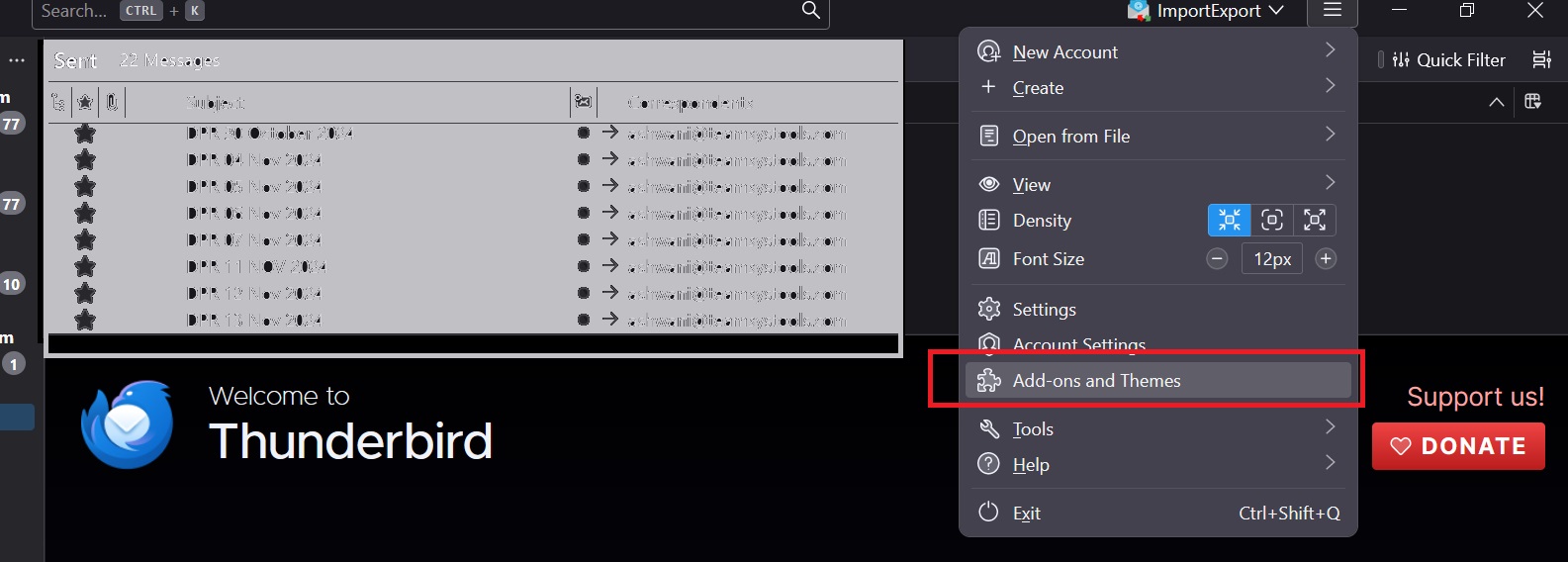
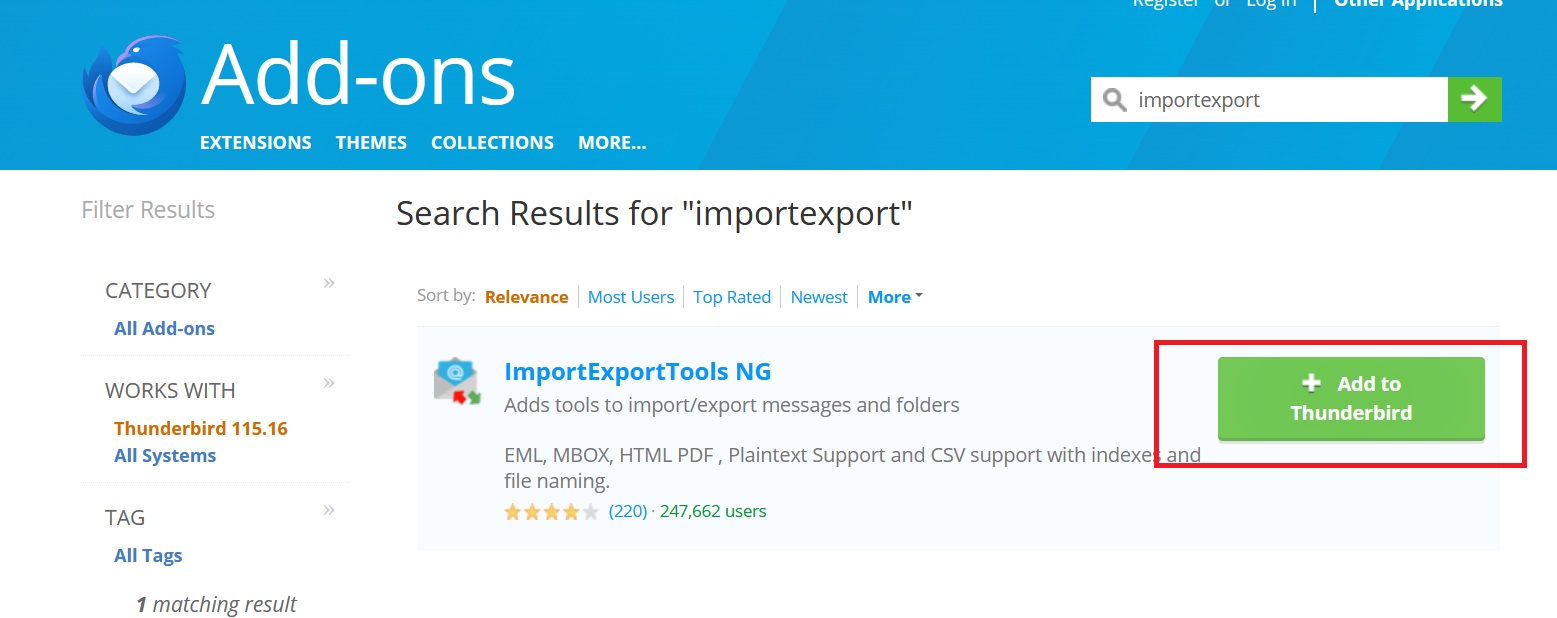
- Now, search for “ImportExport” option and click on + Add to Thunderbird button
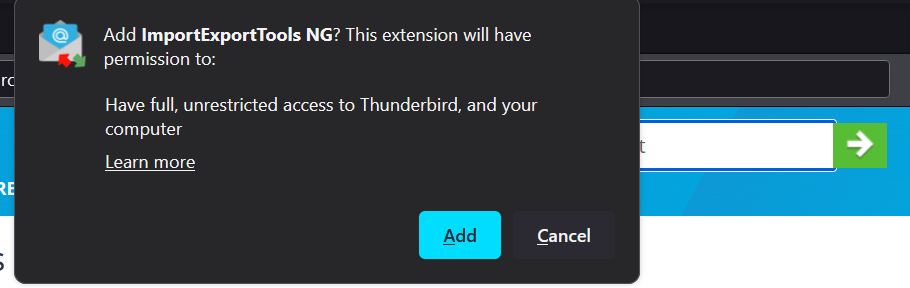
- Then, confirm by clicking on the Add button and restart your Thunderbird application
- Next, find Local Folders and right click on it. After that, follow this path: ImportExport Tools NG > Import MBOX Files > Individual MBOX Files.
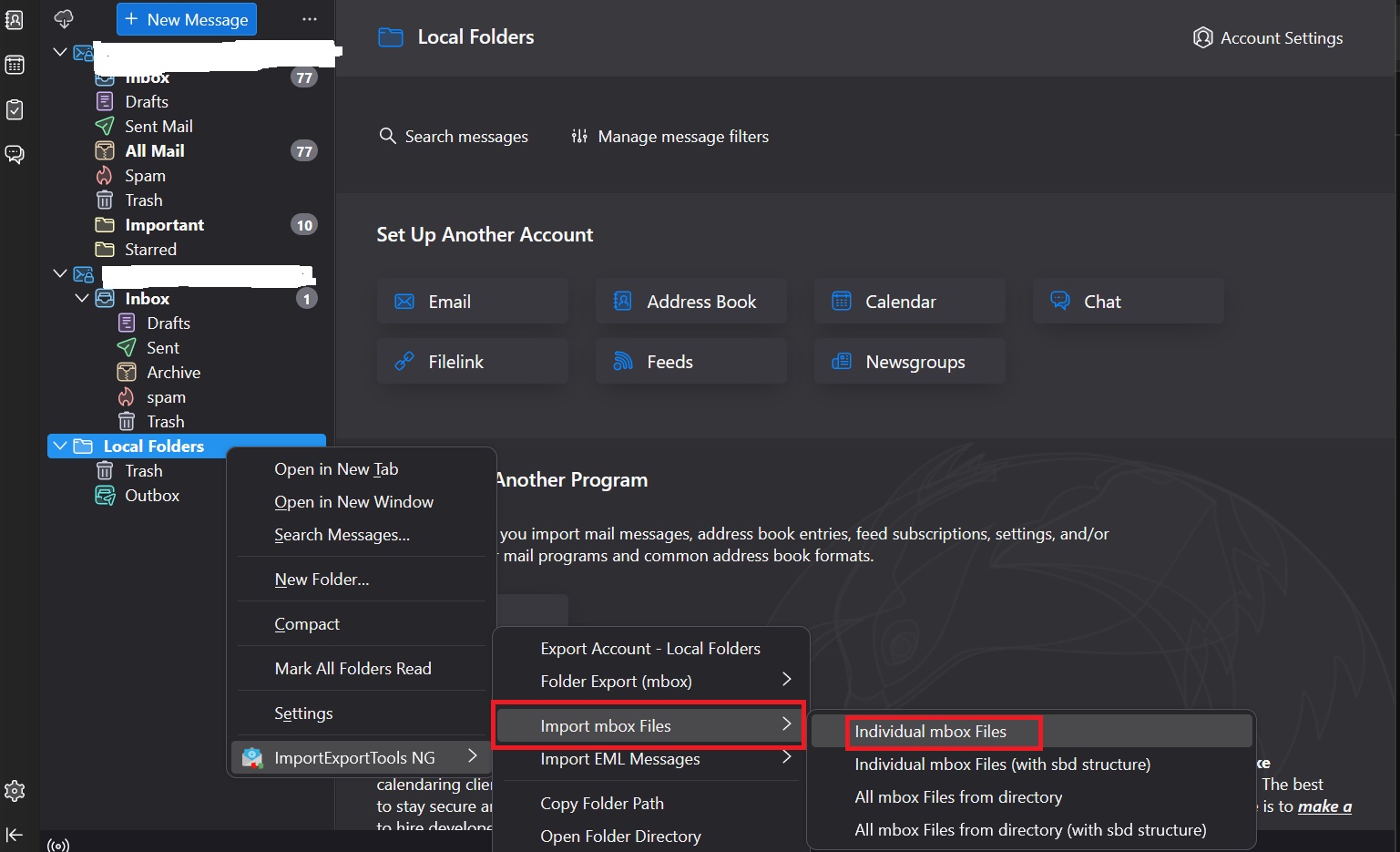
- Browse and select the MBOX file from your system, then click Open
- At last, restart the Thunderbird to check whether the imported mailbox file is correct or not in a preview Window.
#3. Add MBOX File to Thunderbird Manually Using Profile Directory
In this part, we have given you the steps to import MBOX to Thunderbird manually. Just follow the steps one by one:
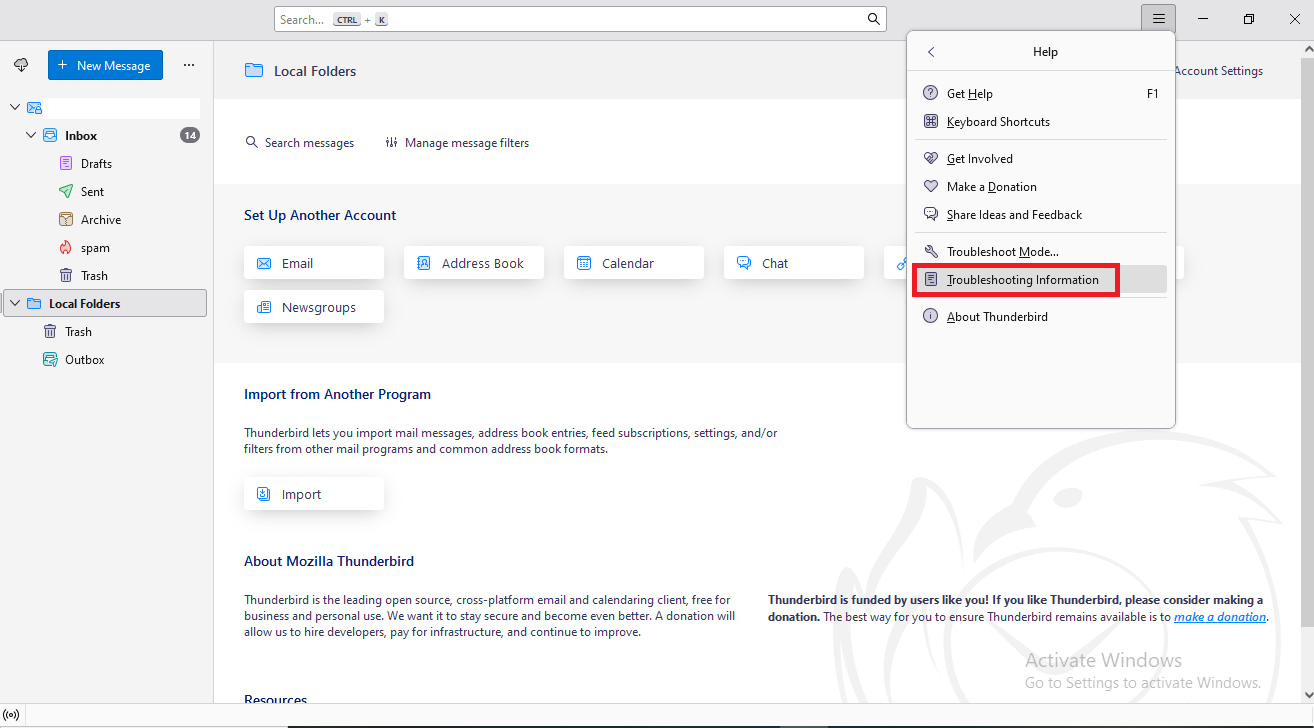
Step 1. Firstly, open your Thunderbird client and view to Help > Troubleshooting Information option.
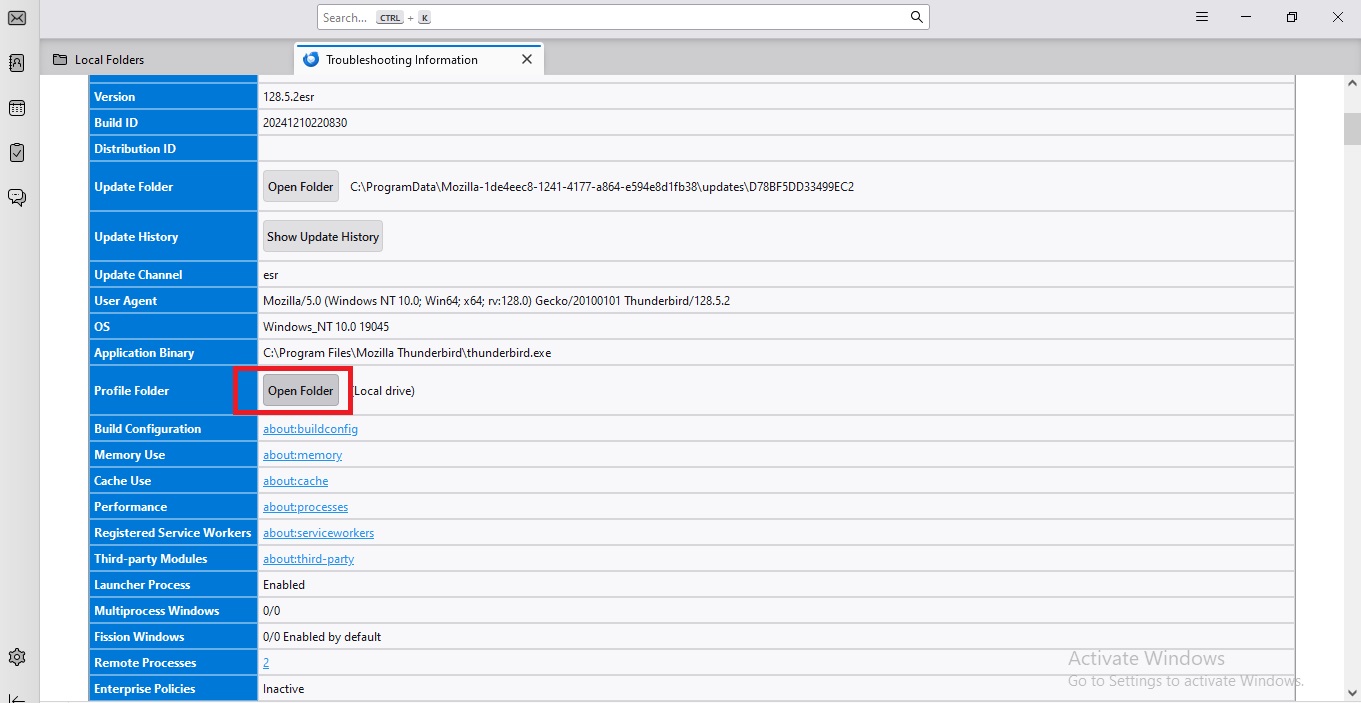
Step 2. Under Profile Folder, click Open Folder to access it.
Step 3. Then, you need to close Thunderbird client to prevent any problem
Step 4. Inside the profile folder, open Mail (for POP account) or ImapMail (for IMAP ones).
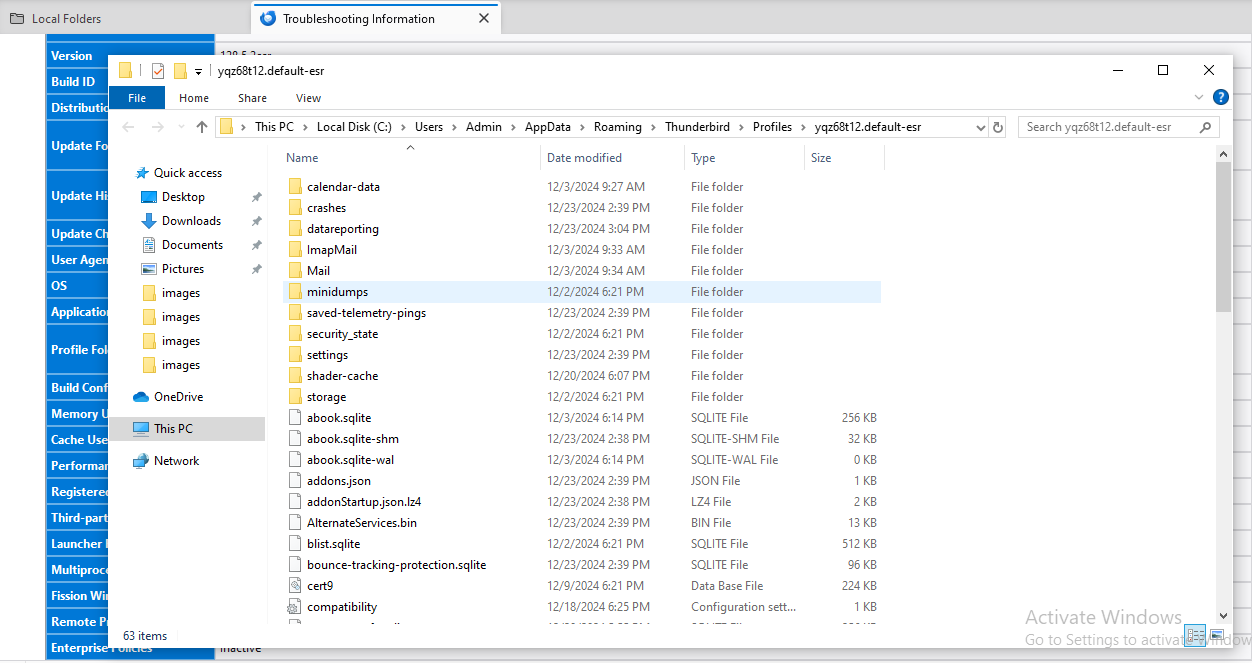
Step 5. Just paste the MBOX file into the correct account folder.
Step 6. Close & open the Thunderbird application again. The MBOX file will appear as a folder under the account.
Step 7. Now, verify the folder to ensure all emails are same as before.
Open MBOX File in Thunderbird – General Problems
Although Thunderbird supports MBOX file format, but users will still face several problems while doing it manually:
- After adding the mailbox file to the Thunderbird profile folder, sometimes it is not visible. This is usually because the file is not yet indexed by Thunderbird. To fix this, restart your Thunderbird or repair the folder
- Sometimes, even the folder itself is not visible and you cannot see the emails. This can happen when the index file is corrupted. There’s one solution to this problem that is to delete the index file. So, that Thunderbird can recreate it
- When the email mailbox gets full, Thunderbird may take longer to load or display. What you can do is split large file into smaller ones or delete few which are not necessary
Drawbacks For Using the Manual Method
As we all know manually we cannot open multiple MBOX files in Thunderbird. Because, this method has some restrictions, so follow the below limitations for the same!
- Using this method is necessary to have technical knowledge.
- It can alter the MBOX file while transferring to a Thunderbird account.
- This process doesn’t guarantee the result, the MBOX files can be lost while migrating.
Important Note: Here, we have done this task using a manual method but, technically this solution is not easy for users. Also, it is a time-consuming process and users cannot open or read multiple MBOX files to Mozilla Thunderbird. Because it has some limitations and other challenges. No need to worry! Below we have suggested an automated tool which is an easy & quick method to overcome this easily in just a few clicks. How? Let us learn in the below section with its working steps!
ImportExportTools NG Alternative That A User can Try
There are certain limitations of using ImportExportTools NG addon. To overcome all these limitation and provide secure migration option. Experts have developed a program that help users importing MBS, MBX, MailDir, EML, EMLX, and MBOX file in Thunderbird easily.
Anyone can use this software and easily open MBOX file. Just follow the below steps:
Step-1: Download the Software and launch it on your system locally.
Step-2: Launch the tool and add the MBOX file into software panel.
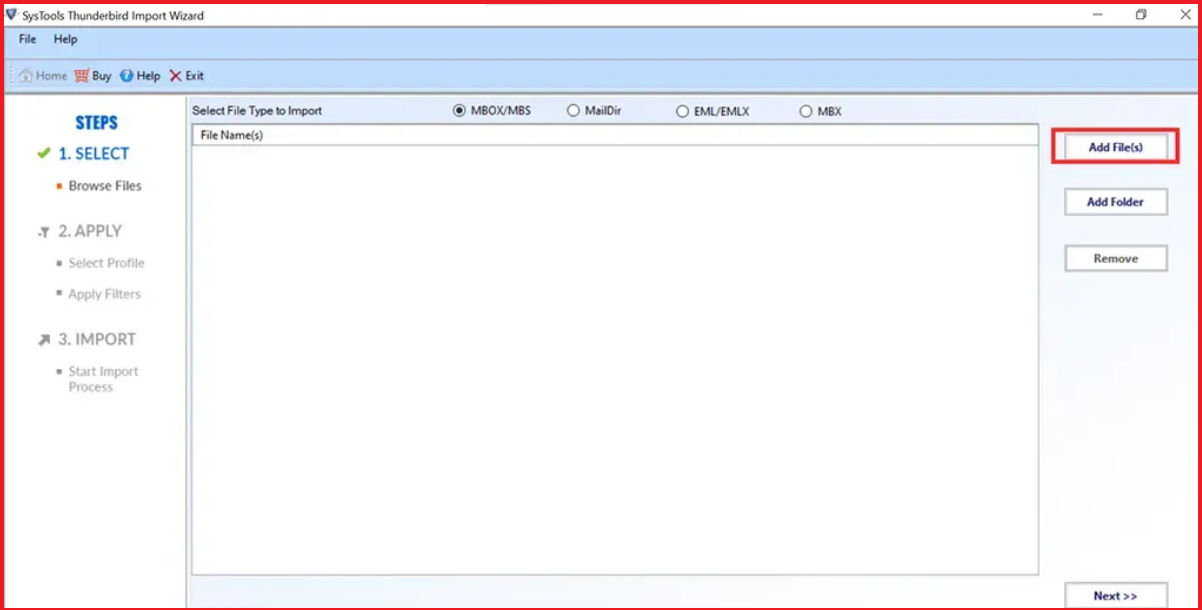
Step-3: Select Filters and Select Thunderbird profile in which you want to import MBOX file.
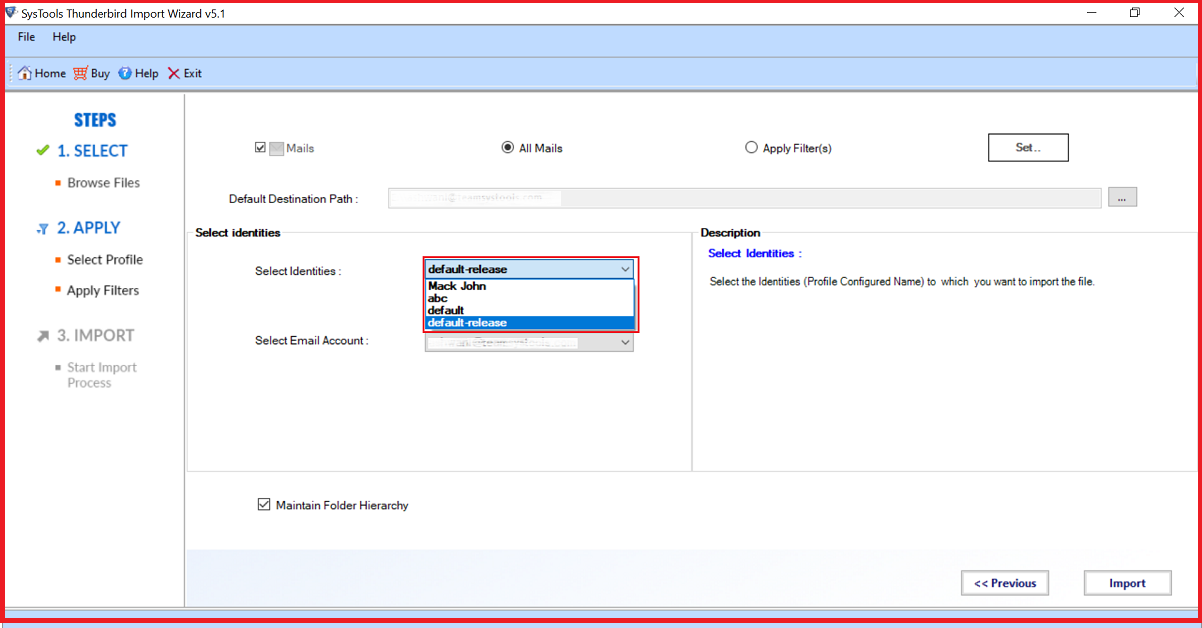
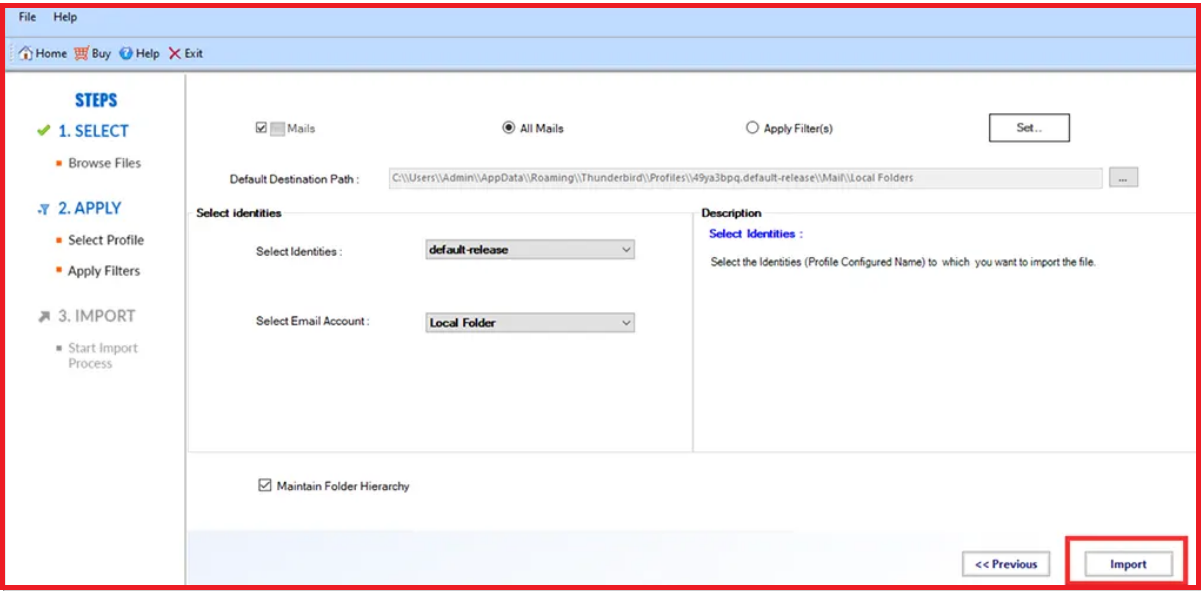
Step-4: Hit Import button to start the Thunderbird Import process.
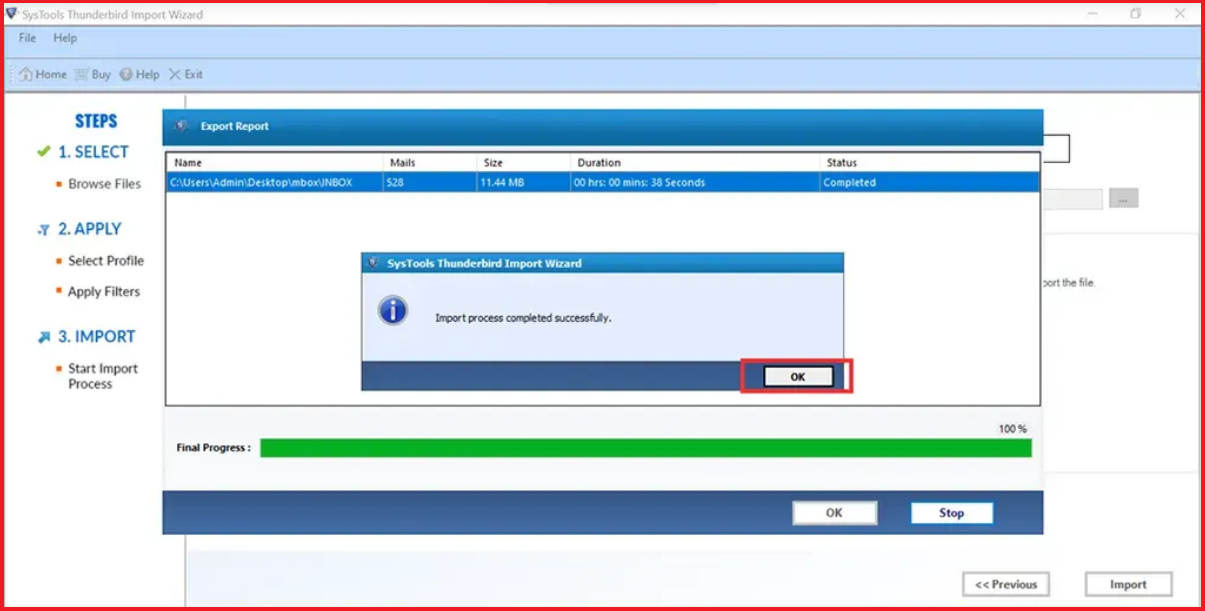
Step-5: After completing process, it will show a success message.
Free Way to Open MBOX without Mozilla Thunderbird
If you are still struggling with the problem of how to open MBOX file in Thunderbird. Then, here in this section we have an amazing MBOX Viewer Tool that helps you in achieving the goal successfully without any data loss. This tool allows you to read MBOX files of multiple email applications without any dependency. Also, it offers several preview modes like Header, HTML, RTF, HEX, and so on.
Moreover, this utility maintains the hierarchy of folders for containing MBOX files. It is easy to use for both technical and non-technical users to open multiple MBOX files to Thunderbird without facing any trouble.
Overall this is a great method to quickly open & read the MBOX file in bulk without facing any technical challenges. So, to know more about this tool you can easily go with the above buy button to get more information.
Now, below we have provided simple working steps to complete this task in just a few clicks. Let us check the below working for reading MBOX files.
A Complete Steps Guide for Opening Bulk MBOX Files
Following is the working process explained to quickly open MBOX file in Thunderbird without installation of any other application:-
1. Install and run the tool on your Windows Machine.

2. View and explore “MBOX File” and preview emails with Attachments

3. Browse the MBOX file in two different modes: Horizontal and Vertical View

4. Multiple Views to Open MBOX File without Thunderbird in Windows OS.

Follow Best Practices to Manage MBOX Files Efficiently
Read the following tips if you are opening your mailbox files in Mozilla Thunderbird, so that everything stays organized:
- Whenever you have lots of archived emails with you, then make separate folders instead of storing at one place
- Deleted emails remain in Thunderbird until folders are compacted. This can help save space and improve performance
- If you change mailbox files outside of Thunderbird, so that can corrupt the file and lead to data loss
- It is best to always have a backup of the essential mailbox files
- So, you can get back your emails in case anything goes wrong
Follow these steps at regular times to keep Thunderbird stable and store your emails properly.
Observational Verdict
In this technical guide, we have discussed all the possible points to solve the issue. To open MBOX file in Thunderbird you can easily use this automated tool which successfully achieves the goal in just a few clicks. And, there is no restrictions, users can easily open single or multiple MBOX files without facing any hassle.
On the other hand, some users want a manual method to perform the task. So go with the above article where you get this method also. But, some technical challenges are not good for non-technical users. Also, users can only open a single MBOX file using a manual method. For more users need to process each again and again for each MBOX file. Read this blog post to choose the best solution for your issue.
Frequently Asked Questions
Q1. How do I open MBOX file in Thunderbird?
Ans. If you want to import MBOX to Thunderbird locally, then the left-hand pane selects local folders. From there, follow this path: Tools >> ImportExportTools NG >> Import MBOX files >>Import directly one or more MBOX files >> Select your exported MBOX file and hit open.
Q2. Can I read multiple MBOX files in Thunderbird?
Ans. Yes, the above automated tool, allows users to open single or multiple MBOX files into Mozilla Thunderbird without losing any data information.
Q3. What to do if ImportExportTools NG fails?
Ans. Try our dedicated solution explained above in this post. It is verified and recommended for personal as well as professional use.
Q4. Is it possible to open MBOX directly in Thunderbird Client?
Ans. Yes, Mozilla Thunderbird can open MBOX files as it also uses that format to store emails. You can open an MBOX file just by putting it inside a Thunderbird profile or you may import it using ImportExportTools NG add-on.
Q5. Where Does Thunderbird store MBOX Files?
Ans. Mailbox files are saved inside the Thunderbird profile folder. You can found them in the Mail Or ImapMail folders, depending on how you have configured your email account.
Q6. Why Doesn’t Thunderbird detect my MBOX file?
Ans. This can be because of several reasons. Like Thunderbird has not indexed the file or you have placed the mailbox file in the incorrect profile directory. Try to restart thunderbird or rebuild the index file.