MSG | 7 Minutes Reading
How to Print Outlook MSG Files? Complete Guide to Printing Outlook Emails


Print MSG file data when you need a hard copy of an Outlook email, its attachments or any important archived messages. You can print MSG files through Outlook but that becomes difficult when Outlook is not installed in your system so the MSG files are stored in bulk or you only need a few specific emails from a large archive. In this guide I will explain to you the practical ways to print MSG files without Outlook and also tell you why using a dedicated viewer for Outlook MSG file is a better option.
Quick Answer: One of the easiest ways to print MSG file data without depending on Outlook is to use a dedicated viewer that can open, search, preview and print MSG emails easily. If you have a large archive then reliable tools such as FORENSICSWARE Solution to open and print MSG files this pro tool can also help you find specific emails using keywords, dates and advanced multiple search filters before printing them.
Table of Content
What Is an MSG File?
An MSG file is an Outlook email file that stores an individual email message along with information such as the sender, recipient, subject, date, message body and also attachments. Do you know people commonly create MSG files by dragging an email from Outlook to a Windows folder or saving an Outlook message as an MSG file.
MSG files are very useful for the following reasons:
- Saving important emails outside Outlook
- Keeping business communication as evidence
- Archiving individual messages
- Sharing emails with another person
- Legal or compliance investigations
- Keeping project related emails together
- And preserving emails before moving between systems
But the problem starts when you need to print these files and you do not have any convenient way to open them.
How to Print MSG Files?
If you are thinking How to Print MSG Files then let me tell you that there are several ways you can use to Print MSG Files and this is depending on whether Outlook is available and how many MSG files you need to print.
The right method is completely depending on your situation:
- Print an MSG file using Microsoft Outlook
- Print MSG files without Outlook
- Print several MSG files in a batch
- Convert MSG emails to PDF and print them
- Search a large MSG archive and print only selected emails
Suppose if you have a few .msg files then Outlook may be enough. But if you have hundreds or thousands of MSG files then manually opening each email is not very practical and quickly becomes frustrating.
Method 1: Print MSG File Using Microsoft Outlook
If Microsoft Outlook is installed in your system and your MSG file opens correctly then you can use Outlook’s built-in printing option as this may work for you well.
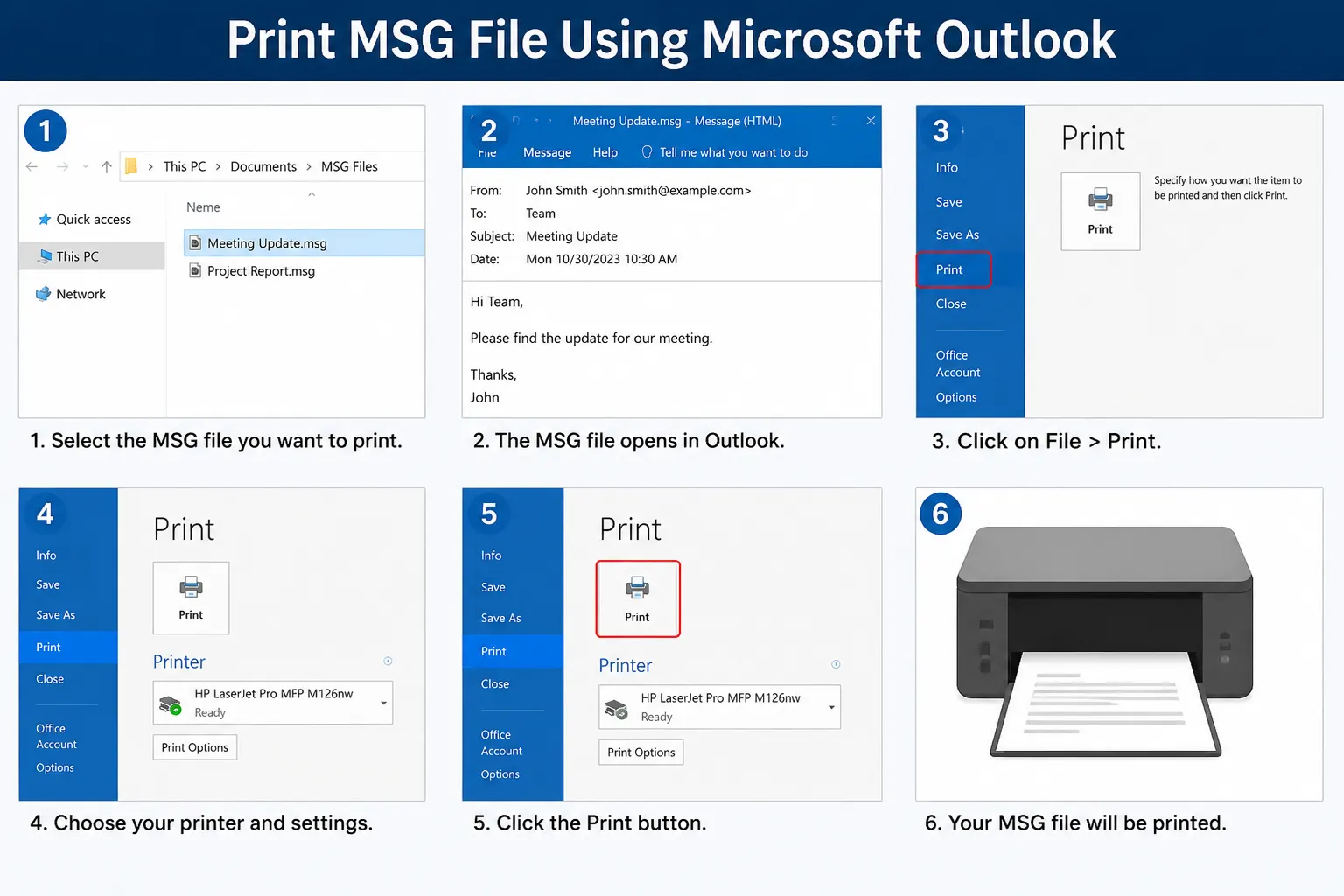
Steps to Print an MSG File in Outlook
- Locate the MSG file on your computer.
- You need to double click the file to open it in Outlook.
- Review the email and attachments.
- Click File.
- Select Print.
- Choose your printer and needful print settings.
- And now click Print.
This method works well when you have only a few .msg files and Outlook is already installed. However there is an important limitation you must know.
What if Outlook Is Not Installed?
An MSG file is designed around Microsoft’s Outlook message format. So without a suitable application Windows may not know how to open the file correctly. Installing Outlook only to print a few archived MSG emails may also be unnecessary and this is especially when you do not need Outlook for anything else.
Method 2: Print MSG Files Without Outlook
If you do not have Outlook installed or you do not want to install Outlook then you can still access and print your MSG emails by using a dedicated viewer to open your .msg files. A reliable and professional viewer must allow you to:
- Open MSG files directly
- Allow you to View complete email content
- Read sender and recipient information
- You can check the date and subject details
- Provide you option to Preview attachments
- Search email content quickly with search option
- Print selected emails
- Export option for emails to PDF
- And process multiple MSG files
For those who need to Print MSG files without Outlook this is one of the quickest and best approaches that avoids installing a full email client.
Using FORENSICSWARE Pro SolutionFORENSICSWARE MSG Viewer Pro is very useful when your main requirement is to work with existing MSG files rather than to manage a new Outlook mailbox. You just need to add your MSG files, open the email content, review the available information and simply use the printing option when you are ready.
One of the biggest advantages is when your MSG collection is large as instead of opening each file one by one here you can use its advanced search options to locate the emails you actually need.
How to Print MSG Files Without Outlook Using a Viewer
If you are particularly looking for How to print MSG files without Outlook then the general process is very simple check below all steps carefully.
Step 1: Add Your MSG Files
Open the application and you simply need to add a folder that contains your MSG files. You can work with individual files or a collection of archived MSG messages.

Step 2: Select the Required Email
You need to browse the MSG files and select the email you want to print. You can check important details such as Sender, Recipient, Subject, Attachments and more as per your need.

Step 3: Preview the Email
Before you start printing you can review all your email to make sure you have selected the correct message. This is very useful when you have many MSG files with similar names.

Step 4: Choose the Print Option
Now you can choose those selected emails or if you want to print a complete archive then you can do it also and select for printing.

Step 5: Complete the Print
Check the preview and print the selected MSG email.

Tip: You should always preview an email before you print it. This simple step can prevent printing the wrong message when you are working with large .msg archives.
Print MSG File With or Without Attachments
Sometimes the email body is all you need to print but in many other cases the attachment is the most important part of that email. For example just imagine an MSG file that containing:
- An email conversation
- A PDF invoice
- A Word document
- Several images
You may want to print only the email or you may need the email and its attachments both together. So in this case you can use FORENSICSWARE Dedicated Viewer to print email with attachments.
Final Thoughts
If you only need to print one or two MSG emails and Outlook is already installed then using Outlook is the simplest choice for you. But things change when you have a large MSG archive, no Outlook installation or you simply need to find specific emails before printing.
For those situations Print MSG file become much easier when you use a dedicated viewer that combines searching, previewing, printing and PDF export as FORENSICSWARE dedicated solution offers.